VS Code integration
SWAN integrates code-server to provide VS Code on the web. This gives you a full-featured code editor alongside your Jupyter notebooks, with access to your CERNBox files and SWAN software stacks.
Getting started
Note
The VS Code integration is only available when using the JupyterLab interface.
- Start a new session and make sure to check Try the new JupyterLab interface (experimental).
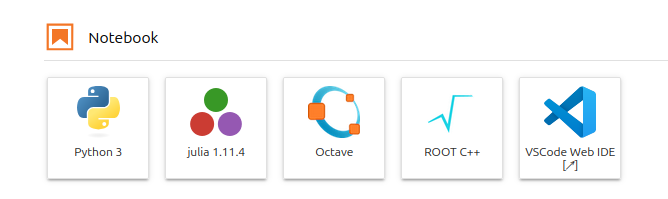
- Once the session starts, click on VSCode Web IDE.
Integrated terminal
The VS Code integrated terminal defines the same environment variables as the Jupyterlab terminal so all scripts and commands that work in the Jupyterlab terminal should work in VS Code as well.
Jupyter notebooks
You can run Jupyter notebooks directly from VS Code, you just need to install the Jupyter
extension.
Import VS Code settings
You can export your existing VS Code settings (File -> Preferences -> Settings ->
Open Settings (JSON)) and import them in SWAN using the same command. User settings are stored on
CERNBox so they persist between sessions.
Differences from Desktop VS Code
While the web version of VS Code works mostly the same, there are some notable differences to be aware of.
Extensions
code-server uses Open VSX instead of the Microsoft's marketplace when installing extensions. While most popular extensions are available, some other extensions might not. Note that just like user settings, installed extensions are stored on CERNBox so they persist between sessions.
Keybindings
Some VS Code keybindings interfere with browser keybindings. For example CTRL-N/CTRL-W to
open/close a new editor tab will open/close a browser tab instead. You might wish to rebind these
to something else.