Browse the Rucio catalog and use datasets
DISCLAIMER
Please note that the extension configuration is different from the configuration of your terminal. In order to have the rucio commands properly working in your user terminal, you need to set up the clients following the instructions from your experiment. See the ATLAS guide as an example.
Browsing the catalog
The search bar only accepts items that are built according to the scope:name format.
To dynamically browse the available scopes for an experiment, click on the folder icon to the right of the search bar. When a scope is selected, the search bar will be pre-filled with that scope.
Entries can be filtered by type (Container, Dataset, File) and by metadata (see the Rucio database model).
The search method accepts the * wildcard, so to list all the elements registered under a scope example, you can search for example:*.
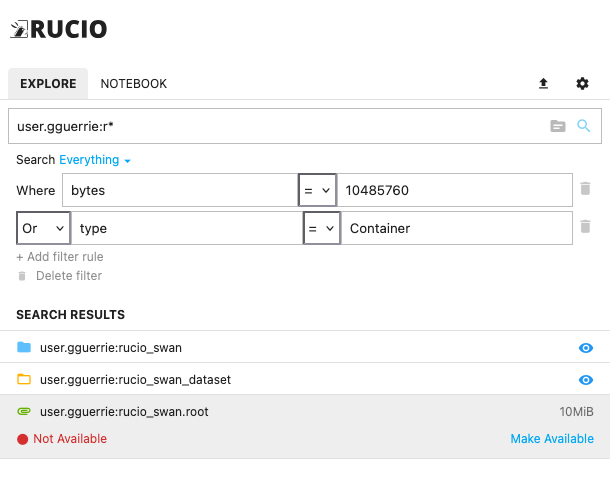
If one or more of the files are not available on the RSE mounted in the SWAN session, you should execute the command rucio list-file-replicas <example:test.root> in your terminal. This should lead to two possible scenarios:
- The files are replicated in an RSE hosted at CERN: in this case, simply change the SWAN session configuration and set up the RSE that already has the dataset/files replicated.
- The files are NOT replicated in an RSE hosted at CERN: in this case, you should trigger a replication rule by clicking
Make Available. Please discuss with your conveners which RSE is best to replicate the data to, and mount it in the SWAN session BEFORE triggering the rule.
Using the data
Once the data becomes available, you can use it directly in a notebook. While a notebook is open in the SWAN session, an Add to notebook link should appear in the extension sidebar, as shown in the image below.
After clicking on the link, you can provide a name for the variable that will correspond to the data. After confirmation, this will result in a new variable in the notebook that contains the path to the selected datasets.
